
Need to update your billing address for invoices or purchases? On Beat22, you can easily delete and add a new one.
Here’s how:
Step-by-Step: Update Your Billing Address
- Log in to Your Account
Go to beat22.com and sign in with your buyer account. - Click on Your Profile Icon (Top Right Corner)
Once logged in, click your profile icon at the top-right of the page.

- Go to “Settings”
From the dropdown menu, select “Settings” to open your account settings.
- Find the “Billing Address” Section
Scroll to the Billing Address area.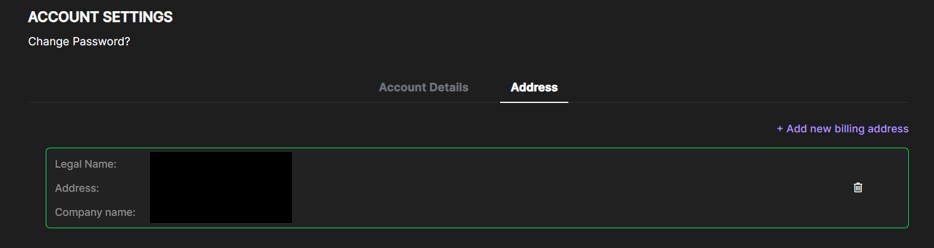
- Click the Trash Icon 🗑️
To remove your existing address, click the dustbin icon next to it. - Add a New Billing Address
You can keep the previous billing address and add a new billing address as well. Click “Add Address” and enter your new billing details. - Save Changes
Once entered, click Save to update.
Why This Matters:
- Keeps your invoices accurate
- Ensures smooth payment processing
- Helps with tax and legal compliance
If you face any trouble updating your billing details, email us at support@beat22.com — we’ll help you out quickly!