
Want to personalize your Beat22 account with your own profile photo? It’s super easy and takes just a few seconds! Follow this step-by-step guide to update your profile picture:
Step-by-Step: Update your profile picture
Log in to Your Account Go to beat22.com and sign in.
Click on your profile icon (Top right corner) Once logged in, you’ll see your profile icon at the top-right of the screen. Click on it to open the menu.

Go to “Settings” From the dropdown, select “Settings” to open your account settings.

Click on the profile picture area You’ll see your current profile photo (or a placeholder image). Click on it.
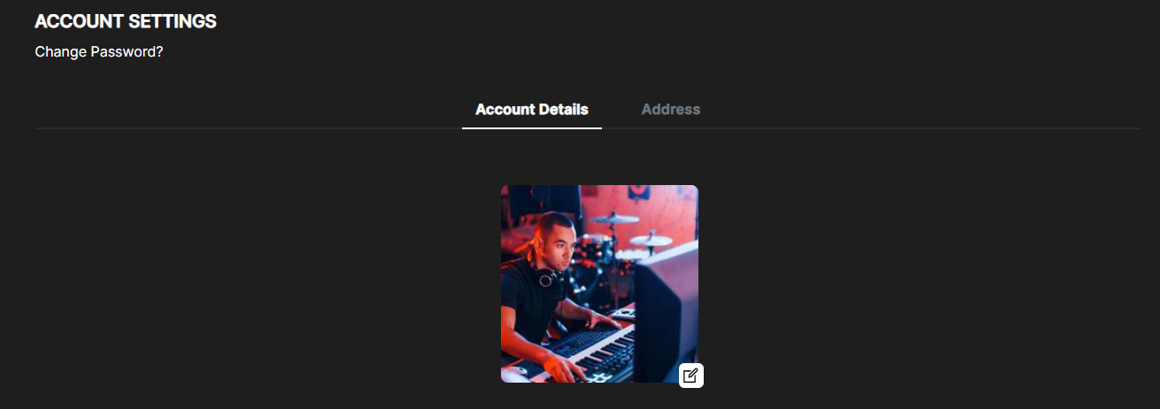
Upload a new picture Select a photo from your device and upload it. Make sure the image is clear and appropriate.
Save changes Once uploaded, your profile picture will update automatically. You’re all set!


You can update it anytime Want to change your photo again later? Just repeat the steps above.