
Article on:
Content Management
How to enable negotiation feature?
Only Exclusive License can be Negotiated.
You can turn on the Negotiation by either applying the Global Rule or the Local Rule
- Global Rule helps you to turn on the negotiation on all the beats (except the ones having local rule.)
- Local Rule helps you to to turn on the negotiation on a specific beat
Tip: Local rule is prioritized over the Global rule.
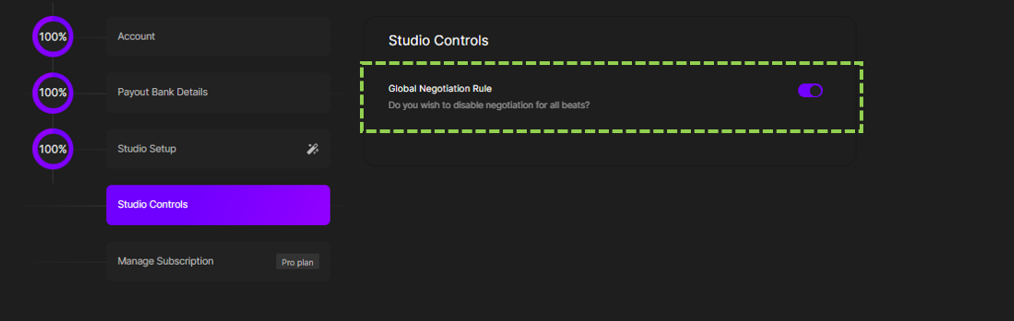
How to enable the Global rule?
Turn it ON for all from Studio Settings > Studio Controls
How to enable the Local Rule?
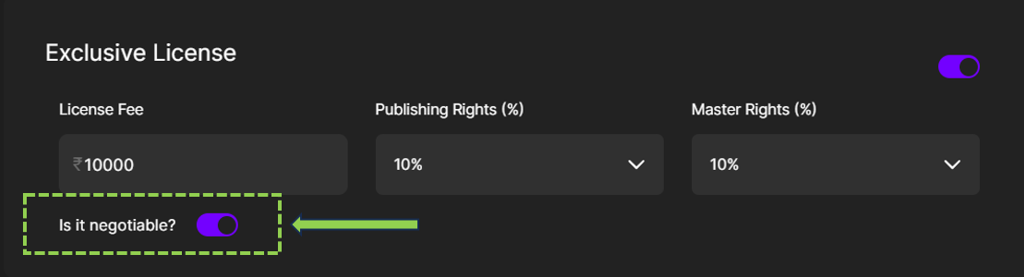
1) While Uploading: Turn on the button “Is it negotiable?”
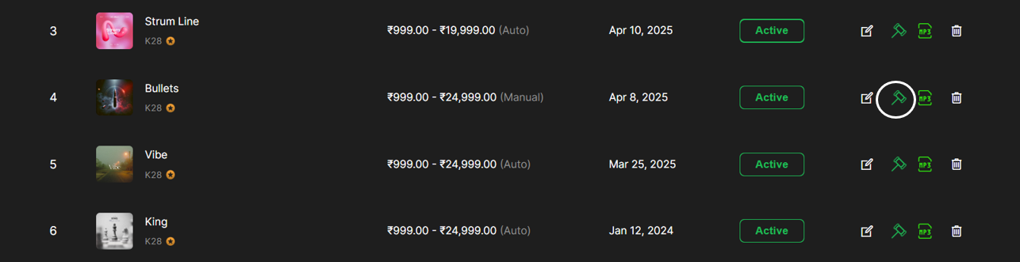
2) After Uploading:
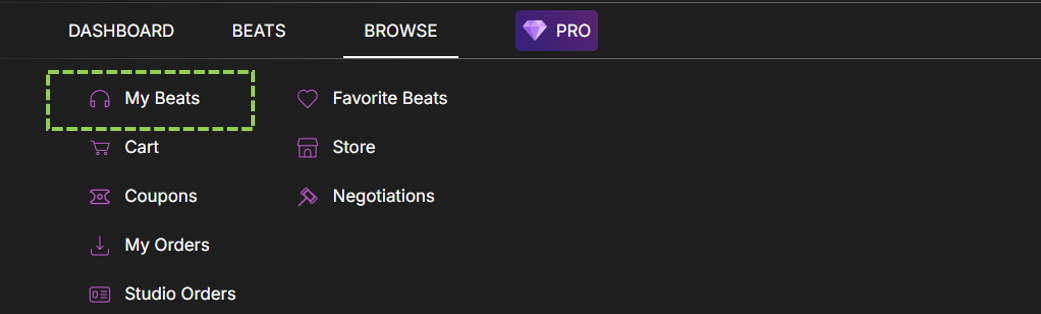
- Go to My Beats
- Click the icon on any exclusive beat
Note: The Negotiation feature can only be enabled if the Exclusive License option is turned on for the beat.
(DISCLAIMER: Beat22 does not legally represent any producers, sellers, and artists via this Platform. Beat22 is only recommending license terms as per universally acceptable industry practices. You are advised to consult with independent legal counsel before licensing any music and/or entering any transaction via Beat22 Platform.)


