Need to update your billing address for invoices or purchases? On Beat22, you can easily delete and add a new one. Here’s how: Step-by-Step: Update Your Billing Address
Log in to Your Account Go to beat22.com and sign in with your buyer account.
Click on Your Profile Icon (Top Right Corner) Once logged in, click your profile icon at the top-right of the page.

Go to “Settings” From the dropdown menu, select “Settings” to open your account settings.

Find the “Billing Address” Section Scroll to the Billing Address area.
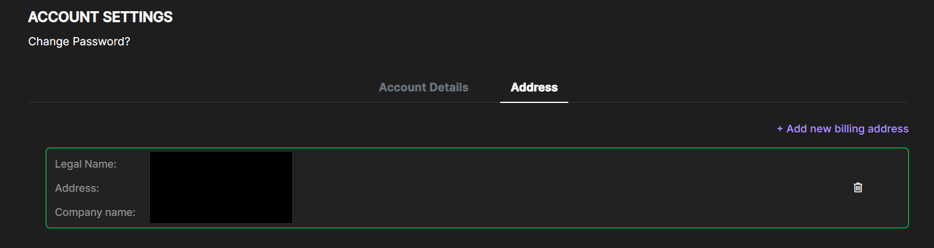
Click the Trash Icon 🗑️ To remove your existing address, click the dustbin icon next to it.
Add a New Billing Address You can keep the previous billing address and add a new billing address as well. Click “Add Address” and enter your new billing details.
Save Changes Once entered, click Save to update.


Why This Matters:
- Keeps your invoices accurate
- Ensures smooth payment processing
- Helps with tax and legal compliance
If you face any trouble updating your billing details, email us at support@beat22.com — we’ll help you out quickly!