
Need to update your password for security or personal reasons? No problem — Beat22 makes it quick and easy to change your password directly from your account settings. Follow this step-by-step guide:
Log in to Your Account Visit beat22.com and sign in with your current email and password.
Click on Your Profile Icon (Top Right Corner) After logging in, click on your profile icon at the top-right of the page.

Go to “Settings” In the dropdown menu, select “Settings” to open your account preferences.

Scroll to the “Change Password” section You’ll find a section labeled Change Password.

Enter the required details Enter your current password. Enter your new password. Confirm your new password
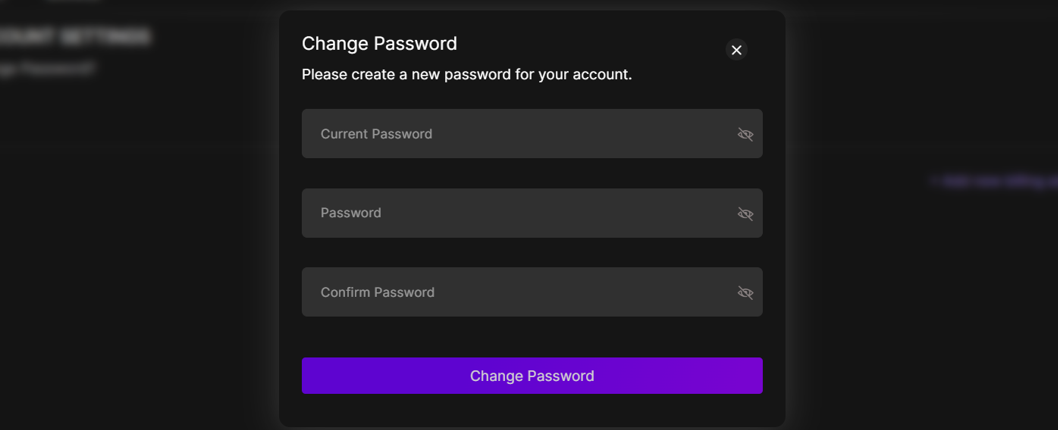
Click “Change Password”


Once updated, your password will be changed instantly and securely. Forgot Your Password? If you’re locked out of your account or can’t remember your password, go to the Login Page and click “Forgot Password”. We’ll send you a reset link via email. Pro Tip: Use a strong password that includes letters, numbers, and symbols for maximum security.